Llamacoids / Llamacoid Studio
Lay out your tags. See the price as you go.
Llamacoid Studio is our own tag builder, on your computer. Type what each plate says, pick the colour and the size, and the layout, the part numbers and the price work themselves out. When it looks right, send it to us and we engrave it — same day.
Download Llamacoid Studio How to set it up 289-275-9572 Free to download. No licence key, no subscription. Mac and Windows.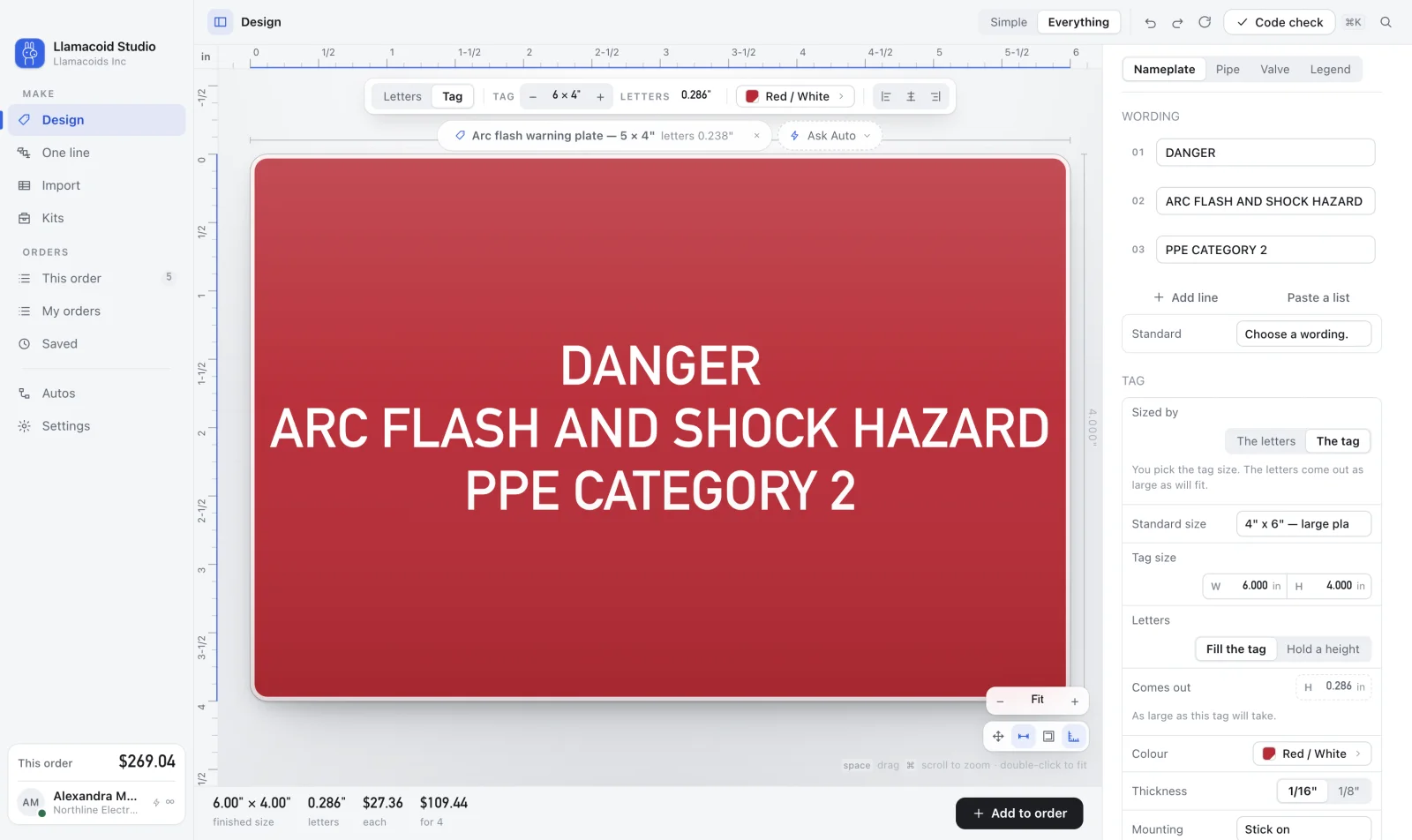
See it work
One sentence in. A sent order out.
Forty seconds of the real app. LamaBot draws four breaker tags, one more is typed by hand, and the order is priced, packed and sent to the shop.
Download it
Free to download. Pick the one for your computer.
Setting it up
Llamacoid Studio is a small shop’s app, not something from an app store, so your computer will stop you once and ask whether you are sure. That is normal, it is not a virus warning, and it only happens the first time. Here is exactly what it looks like and exactly what to press.
-
Open the download
Double-click the .dmg file. A window opens with the app in it. Drag Llamacoid Studio into your Applications folder, then close the window and eject the disk image.
-
The first time, right-click it — do not double-click
This is the step everybody gets stuck on. In your Applications folder, right-click (or hold Control and click) Llamacoid Studio, then choose Open. macOS asks once more — press Open again.
If you double-click it instead you get the box below and it only offers Done. The app is not broken. macOS says this about every app whose maker has not paid Apple’s yearly fee, and double-clicking never gives you a way through. The right-click does.
macOS cannot verify the developer of “Llamacoid Studio”. Are you sure you want to open it?By opening this app, you will be overriding system security which can expose your computer and personal information to malware that may harm your Mac or compromise your privacy.
Move to Bin Cancel OpenYou only see this box, with an Open button in it, if you got here by right-clicking.
Stuck on a box that only says Done or Move to Bin? Open System Settings → Privacy & Security, scroll down, and press Open Anyway next to Llamacoid Studio. Same result.
-
That is it, and you never do it again
After the first open it launches like any other app, and it keeps itself up to date from then on. You will not have to come back to this page.
There is no build for older Intel Macs. To check which you have: Apple menu → About This Mac. If the Chip line says Apple M-anything you are fine. If it says Intel, call us on 289-275-9572 and we will take your tag list over the phone or by email instead.
-
Run the installer
Double-click the Setup file. It installs for you only, so it does not ask for an administrator password — which means it works on a locked-down work PC.
-
Windows will say it protected your PC — press More info
A blue box appears with only a Don’t run button showing. The way through is the small More info link, which reveals Run anyway underneath it. This is SmartScreen, and it says this about any installer it has not seen thousands of times before.
Windows protected your PCMicrosoft Defender SmartScreen prevented an unrecognised app from starting. Running this app might put your PC at risk.
More infoRun anyway Don’t runRun anyway only appears after you press More info.
-
That is it, and you never do it again
Llamacoid Studio is in your Start menu and on your desktop, and it keeps itself up to date from then on.
Take the portable zip instead. Unzip it anywhere — your desktop, a USB stick — and run Llamacoid Studio.exe out of the folder. Nothing is installed and nothing is written to the registry. A portable copy cannot update itself, so come back here when you want a newer one.
What it does
Sizes, part numbers and costing match our production builder exactly, so the price you see is the price we quote and the plate you draw is the plate we cut.
Draw a tag by typing it
Type the lines, pick the colour and the letter height, and it lays itself out. Breaker tags, nameplates, MCC labels, valve tags, pipe markers, arc-flash plates, legend plates.
Paste a whole schedule
Drop in a panel schedule or a spreadsheet and get every plate drawn at once, numbered and priced, instead of typing forty of them.
Start from a kit
Common sets are already laid out. Pick the job, fill in your details and change any plate you want before it goes on the order.
Price it before you ask
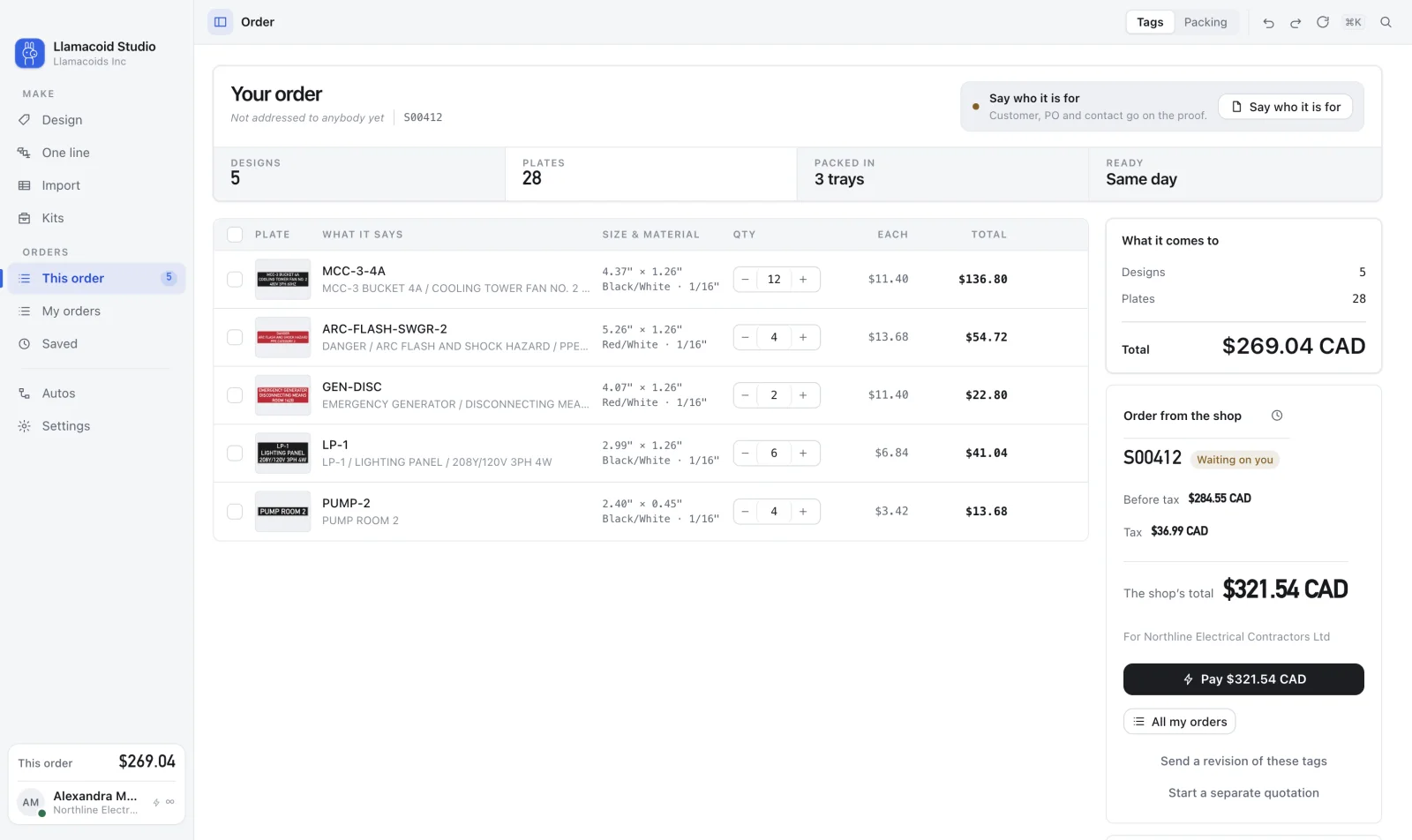
The running total is on screen as you work, so you can quote your own customer without waiting on us.
Get a proof, then send it
A PDF proof of every plate, and the order goes straight to the shop. Review, sign and pay by card in the app if you want to.
Order it again next year
Every order you send is kept, so a repeat job is two clicks rather than re-typing a panel you did last spring.
The app opens on a sign-in screen. Use your llamacoids.ca account, or create one there for free. Your prices and orders come from that account. Once you have signed in, you can keep designing and pricing with no internet.
What it runs on
- macOS
- Apple Silicon (M1 or newer), macOS 11 Big Sur or later. No Intel build.
- Windows
- Windows 10 or 11, 64-bit. Installs per user, with no administrator password.
- Disk
- About 400 MB once installed.
- Internet
- To sign in the first time, send an order and pay. Designing and pricing work offline after that.
- Price
- Free to download. No licence key and no subscription. You pay for the tags you order.
- This version
- —
It updates itself
You only install it once. When we release a new version, a bar appears across the top of the window saying so, and one click downloads it, installs it and reopens the app. Your designs, saved work and settings are kept.
Nothing is downloaded until you press it, and nothing installs in the background. If you would rather check by hand, it is under Help → Check for Updates.
If it will not open
Call the shop on 289-275-9572 or email sales@llamacoids.ca. Tell us which computer you are on and what the message said. Nine times out of ten it is the right-click step above.
We are at 1550 Yorkton Court, Unit 7, Burlington, Ontario, and we engrave same day.